Are you constantly battling a dwindling iPhone battery, always on the lookout for a charger? In today’s always-on world, extended battery life isn’t just a convenience; it’s a necessity. While iPhones don’t have a single, explicitly named “Adaptive Power Mode” setting, iOS is packed with intelligent features that collectively act as a dynamic power management system. Understanding and leveraging these settings is key to unlocking significant adaptive power mode iPhone battery saving. This post will guide you through the essential tips and tricks to maximize your iPhone’s endurance and keep it going stronger for longer.
What is Adaptive Power Management (on iPhone)?
Think of adaptive power management as your iPhone’s built-in intelligence to conserve energy when you need it most. Instead of a one-size-fits-all approach, it subtly adjusts various functions to match your usage patterns and current battery level. While not a single switch, enabling the right combination of settings and understanding how your iPhone manages power is crucial for effective adaptive power mode iPhone battery saving.
Low Power Mode Explained
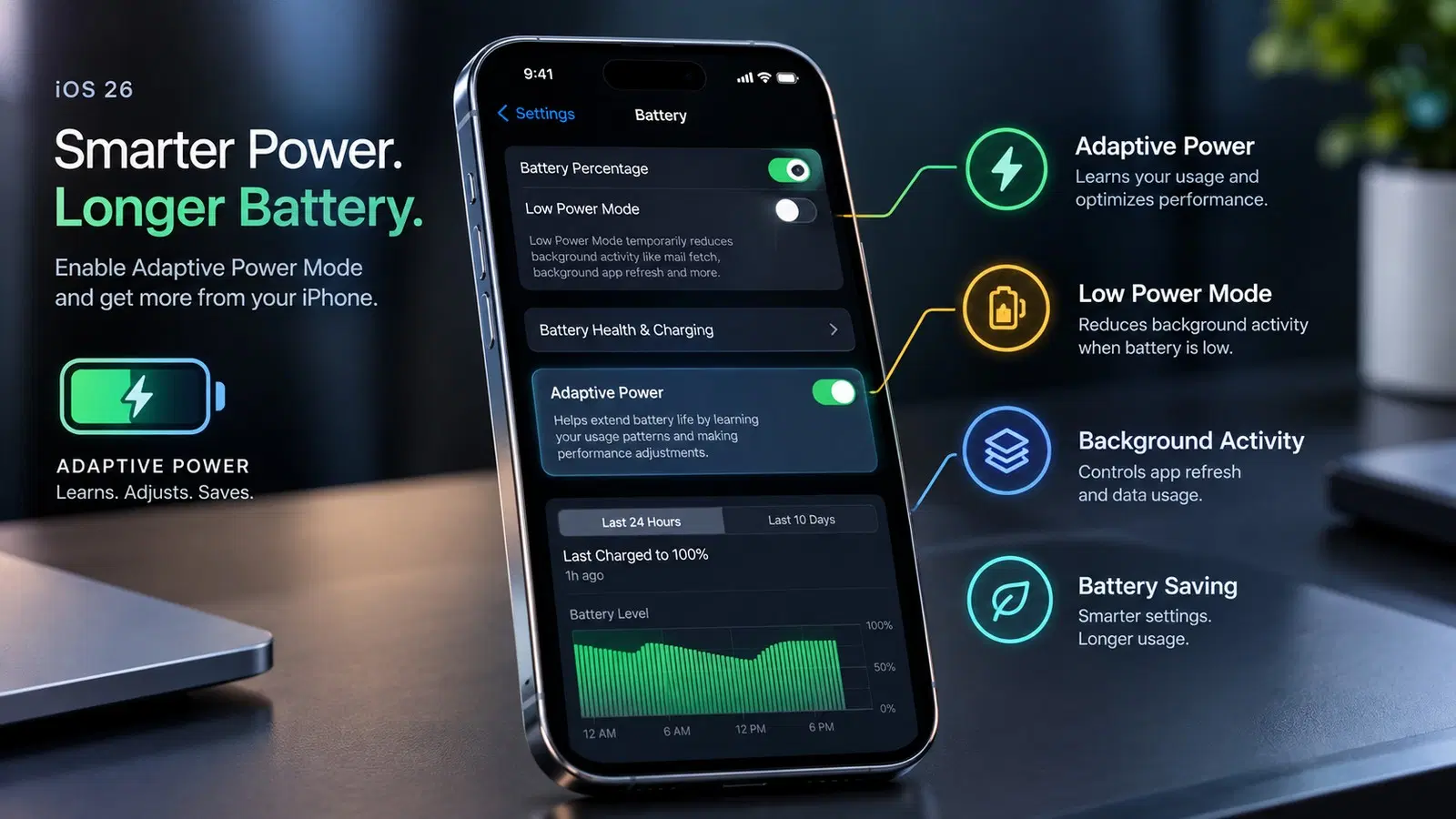
The closest explicit feature to an “adaptive power mode” on your iPhone is Low Power Mode. When enabled, your iPhone temporarily reduces power consumption by:
- Disabling automatic mail fetch.
- Halting background app refresh.
- Pausing automatic downloads.
- Slightly reducing visual effects.
- Limiting CPU performance for non-essential tasks.
Your battery indicator turns yellow when Low Power Mode is active. It automatically turns off when your iPhone charges to 80% or higher, making it an excellent example of proactive adaptive power mode iPhone battery saving.
How to enable Low Power Mode:
- Go to Settings.
- Scroll down and tap Battery.
- Toggle on Low Power Mode.
You can also add it to Control Center for quick access.
Optimized Battery Charging
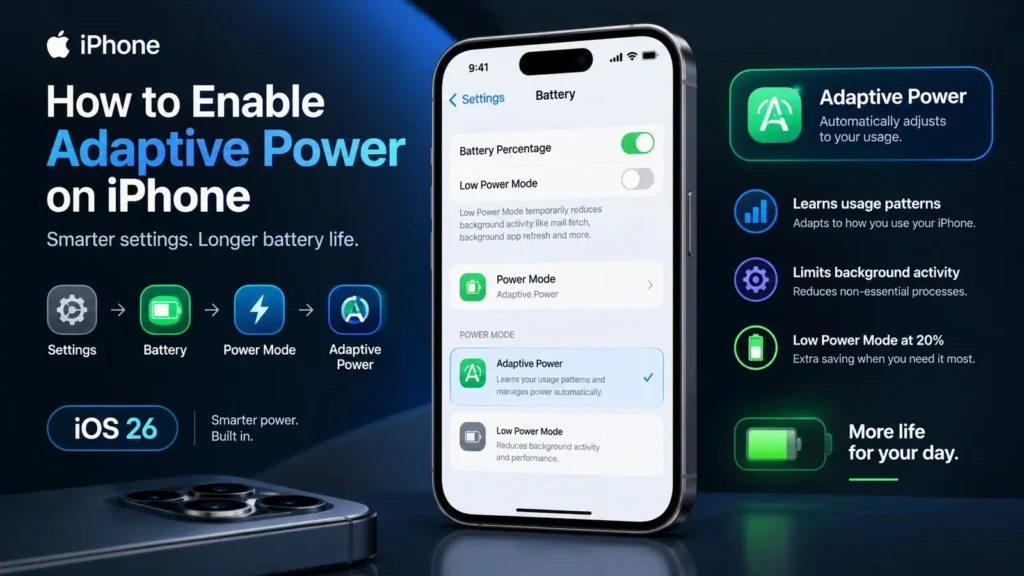
Another smart feature contributing to your iPhone’s adaptive power management is Optimized Battery Charging. This feature is designed to reduce battery aging by understanding your daily charging routine. It learns when you typically charge your iPhone and holds off on charging past 80% until closer to when you need to use it. This prevents the battery from spending prolonged periods at a full charge, which can degrade its lifespan over time.
How to enable Optimized Battery Charging:
- Go to Settings.
- Tap Battery.
- Tap Battery Health & Charging.
- Toggle on Optimized Battery Charging.
Key Features for Adaptive Power Mode iPhone Battery Saving
Beyond Low Power Mode, several other iOS features work in the background or can be manually adjusted to significantly enhance your adaptive power mode iPhone battery saving efforts.
Background App Refresh Control
Apps often refresh their content in the background even when you’re not using them, consuming battery and data. While useful for some apps, it’s a major battery drain for others. Controlling this is a prime example of adaptive power management.
How to manage Background App Refresh:
- Go to Settings.
- Tap General.
- Tap Background App Refresh.
- You can either turn it off entirely, allow it only on Wi-Fi, or selectively disable it for apps you don’t need constantly updated (e.g., games, social media apps you don’t check frequently).
Auto-Lock and Screen Brightness
Your iPhone’s screen is one of the biggest power consumers. Minimizing the time it stays on unnecessarily and keeping its brightness in check are simple yet effective aspects of adaptive power mode iPhone battery saving.
- Auto-Lock: Set your screen to turn off quickly when idle.
- Go to Settings.
- Tap Display & Brightness.
- Tap Auto-Lock and choose a shorter duration like 30 seconds or 1 minute.
- Brightness: Use Auto-Brightness to let your iPhone adjust screen brightness based on ambient light, or manually keep it lower.
- Go to Settings.
- Tap Accessibility.
- Tap Display & Text Size.
- Scroll down and toggle on Auto-Brightness.
Beyond Low Power Mode: Advanced Tips
For those truly committed to maximizing their adaptive power mode iPhone battery saving, dive into these advanced settings and habits.
Location Services and System Services
GPS and location tracking can be significant battery drains. While essential for navigation and some apps, many apps don’t need constant access. Fine-tuning these settings enhances your iPhone’s adaptive power capabilities.
How to manage Location Services:
- Go to Settings.
- Tap Privacy & Security.
- Tap Location Services.
- Review each app and set its location access to “While Using the App” or “Never” unless absolutely necessary for “Always.”
- Scroll to the bottom and tap System Services. Turn off services you don’t need, such as “Location-Based Alerts,” “Location-Based Suggestions,” or “Product Improvement” features.
Push vs. Fetch Mail Settings
How your iPhone receives emails can impact battery life. “Push” delivers new emails instantly, which can consume more power. “Fetch” retrieves emails at set intervals or manually.
How to adjust Mail Fetch settings:
- Go to Settings.
- Tap Mail.
- Tap Accounts.
- Tap Fetch New Data.
- For accounts that aren’t critical, switch from “Push” to “Fetch” or even “Manual” at the bottom. Adjust the fetch interval to 30 minutes, hourly, or manually.
App-Specific Battery Usage
Your iPhone offers insights into which apps are consuming the most battery. Regularly checking this can help you identify and address power-hungry culprits.
How to check App-Specific Battery Usage:
- Go to Settings.
- Tap Battery.
- Scroll down to “Battery Usage By App.” Here you’ll see a breakdown of which apps have used the most battery in the last 24 hours or 10 days.
If an app is consuming an unusually high amount of power, consider limiting its background activity, reducing its notification frequency, or even deleting it if it’s not essential.
Maximizing Your iPhone’s Battery Life
Implementing these tips is a continuous process. Your iPhone is designed to be smart about power, but your interaction with its settings provides the crucial layer of adaptive power mode iPhone battery saving. Beyond these digital adjustments, remember these physical considerations:
- Avoid Extreme Temperatures: Your iPhone’s battery performs best at moderate temperatures (0° to 35° C / 32° to 95° F). Extreme heat or cold can degrade battery health.
- Software Updates: Always keep your iOS updated. Apple frequently releases optimizations and bug fixes that can improve battery efficiency.
- Wi-Fi vs. Cellular: Using Wi-Fi generally consumes less power than cellular data, especially in areas with poor cellular reception.
Conclusion
While there isn’t a single button labeled “Adaptive Power Mode” on your iPhone, the combination of Low Power Mode, Optimized Battery Charging, and careful management of settings like Background App Refresh, Location Services, and screen brightness creates a powerful, adaptive system. By diligently applying these tips, you’re not just saving battery; you’re actively engaging with your iPhone’s sophisticated power management capabilities. Embrace these strategies for effective adaptive power mode iPhone battery saving, and enjoy a longer-lasting charg