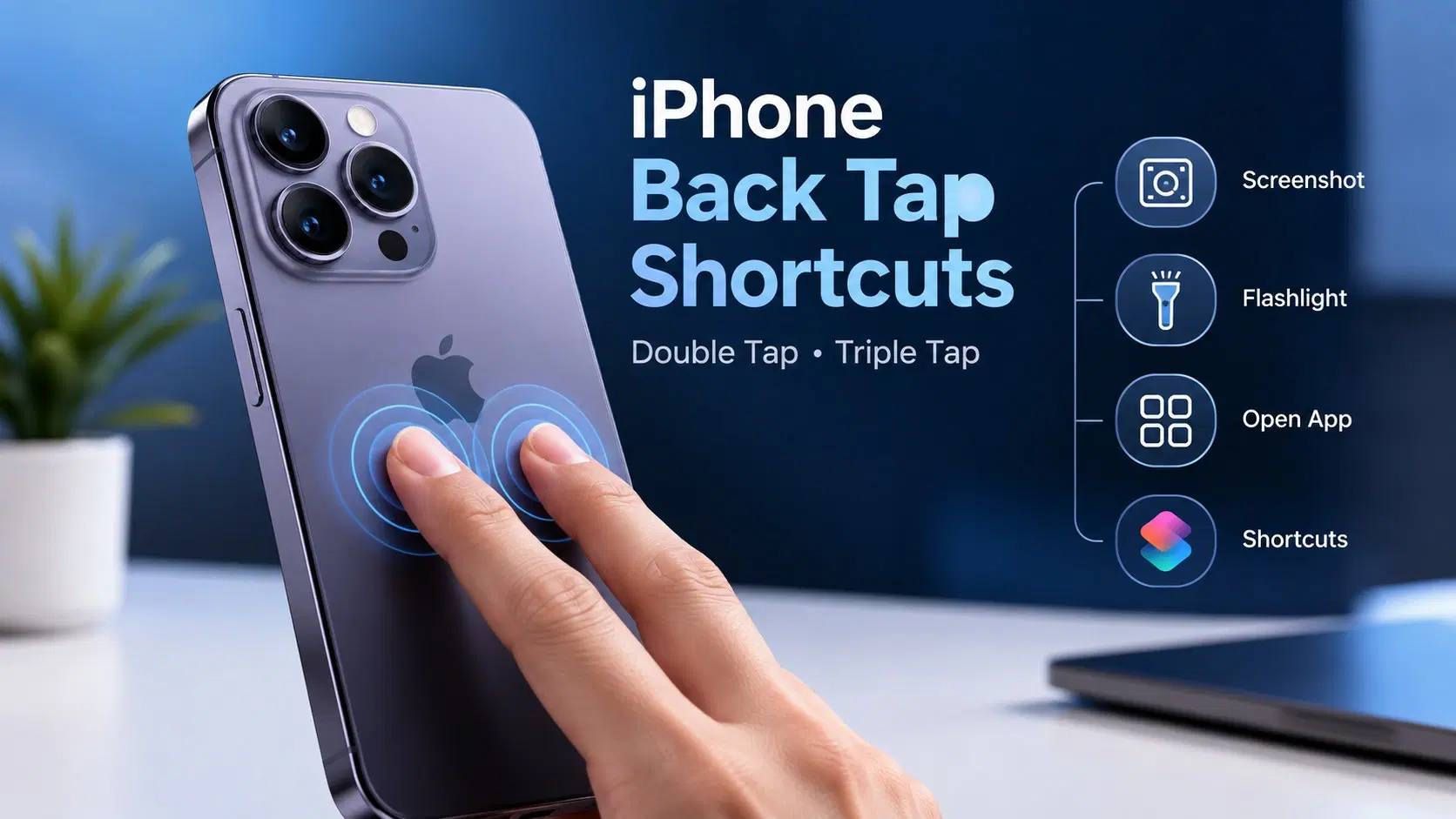
Unlocking your iPhone every time you need to take a quick screenshot, turn on the flashlight, or open a favorite app can feel tedious. Tucked inside Apple’s accessibility menu is a powerful hidden feature that transforms the physical back of your phone into a dynamic button. With a proper iPhone Back Tap shortcuts setup, a simple double or triple tap on the back glass triggers instantaneous system commands or custom automation scripts.
1. Step-by-Step iPhone Back Tap Shortcuts Setup
Setting up this feature requires only a few seconds through your iOS settings menu. Navigate to your iPhone’s Settings app, scroll down, and select Accessibility. Under the Physical and Motor section, tap Touch, then scroll to the bottom of the page to locate Back Tap.
Once inside the Back Tap menu, you will see options for Double Tap and Triple Tap.Selecting either option brings up a comprehensive list of system actions, accessibility features, and custom shortcuts.Choose the specific action you wish to trigger, tap back to save your selection, and test it immediately by tapping the rear center of your phone.
2. Unlocking Custom Automation with the Shortcuts App
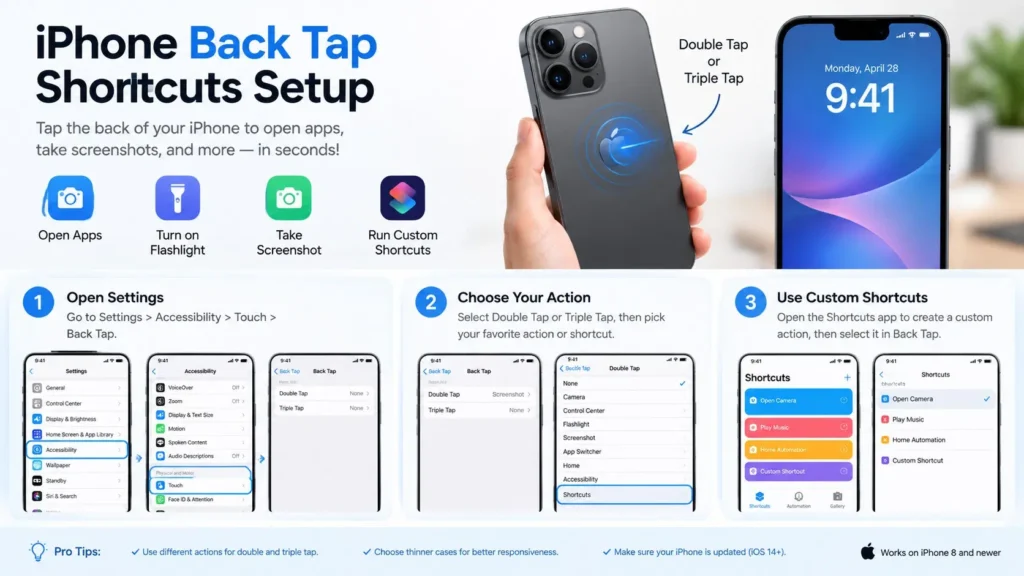
While built-in actions like screenshots and control center access are helpful, pairing Back Tap with Apple’s built-in Shortcuts app elevates your phone’s functionality. You can assign any custom shortcut script—such as identifying a playing song, running a home automation scene, or launching a specific camera preset—directly to a tap gesture.
To assign a custom script, first build or download your desired action within the Shortcuts app. Afterward, return to your Back Tap settings menu, scroll past the system commands to the Shortcuts section near the bottom, and select your custom creation.
For detailed configuration steps and supported gestures, check the official Apple Back Tap support documentation. You can also explore advanced automation workflows through the Apple Developer system portal.
3. Practical Customization Ideas and Best Practices
To make the most of your iPhone Back Tap shortcuts setup, assign distinct actions to double and triple taps to avoid accidental activation. Using a double tap for non-disruptive actions like opening the camera or launching Shazam works best, while reserving the triple tap for high-impact commands like taking a screenshot or controlling smart home devices.
If you find the feature triggering accidentally while placing your phone on a table, evaluate your protective case. Thicker, rugged cases may reduce touch responsiveness, requiring a firmer tap, whereas thinner silicone or leather cases register lighter double-taps effortlessly.
To explore more ways to customize your iOS devices and boost productivity, read our complete guide on latest iOS customization tips and tricks.
Conclusion
Mastering your iPhone Back Tap shortcuts setup turns unused hardware space into a versatile productivity tool. Whether you are capturing quick notes, snapping photos, or launching complex custom routines, Back Tap delivers seamless hands-free control right at your fingertips.