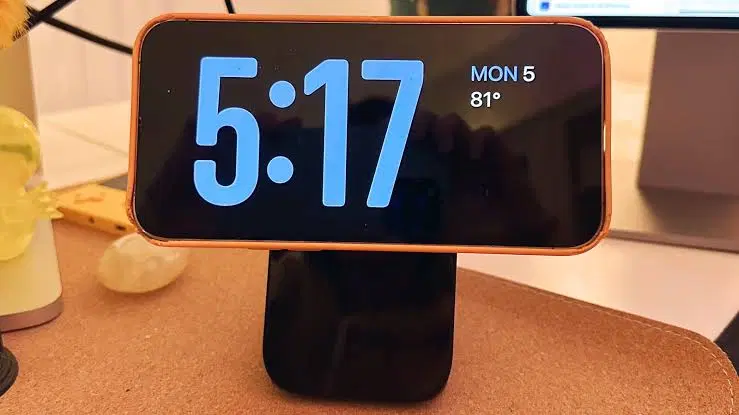
iOS 17 didn’t just introduce incremental features; it added foundational utility. A prime example is StandBy mode. This powerful innovation turns your iPhone into a versatile, always-on smart display that quiet simplifies your life when your phone is locked and charging. This text-only guide provides everything you need to know about iPhone StandBy mode setup, maximizing the use of your device even when it’s not in your hands.
1. Confirming StandBy Compatibility and Requirements
Before you begin the iPhone StandBy mode setup process, confirming that your specific hardware and software support the feature is essential. StandBy requires iOS 17 or later, ensuring compatibility with all models from the iPhone Xr/Xs and second-generation iPhone SE upwards. However, the true ambient display experience, where the screen remains persistently active, is a premium feature limited strictly to the iPhone 14 Pro, iPhone 14 Pro Max, iPhone 15 Pro, and iPhone 15 Pro Max, all of which feature an Always-On display.
For all non-Pro iPhone models, StandBy mode will still activate, but the screen will eventually power off automatically after a short period. This means it functions more like a transient lock screen view, requiring a tap or motion to wake the smart display.
2. Mastering Your StandBy Setup: Activating Key Features
Setting up StandBy mode is highly intuitive and takes place directly within your device’s core settings. Accessing and fine-tuning these options unlocks the personalized intelligent functionality you desire. Follow these simple text instructions to enable StandBy and configure its foundational capabilities:
- Open the Settings app on your iPhone.
- Scroll down to locate and tap on StandBy.
- Tap the primary toggle next to StandBy to enable the feature (it will show green).
Within this specific settings menu, you can personalize the experience with several critical sub-options to perfectly fit your daily mobile workflow and environment:
- Always On: (Compatible Pro models only) Keep this enabled so the brilliant smart display never completely powers down while StandBy is active.
- Night Mode: When activated, this feature automatically applies a soft red tint to all interface elements in low-light environments, dramatically reducing night-time glare and eye strain. Within this submenu, you can also toggle Motion to Wake, which allows Pro models to briefly illuminate StandBy when motion is detected near your phone.
- Show Notifications: Enable this toggle to see incoming notifications while in StandBy. For the ultimate balance of utility and privacy, make sure to also enable Show Preview on Tap Only so that specific message details are protected until you actively choose to view them.
3. Instantly Activating StandBy in Everyday Use
Understanding iPhone StandBy mode setup means nothing without knowing how to trigger it. Once configured, activating the ambient display is seamless and requires almost zero effort in your daily life. StandBy mode will automatically engage the moment your iPhone detects three simple, concurrent conditions:
- The iPhone is locked.
- The iPhone is actively charging (via MagSafe, Qi, or Lightning/USB-C).
- The iPhone is resting horizontally on its side in landscape orientation (not flat).
You do not need an expensive dock; any method of horizontal charging works. Simply leaning your phone against a book while connected via its Lightning/USB-C cable is enough to activate this smart, integrated experience.
4. Deep Customization: Crafting your personalized smart display
The true genius of StandBy lies in its extensive personalization. By turning charging time into glanceable uptime, StandBy lets you customize three distinct ambient views that you can cycle through with ease:
The Dual Widget View
The default view organizes information into two independent widget stacks. This powerful layout lets you perfectly pair an analog clock with your detailed weather overview, or keep your calendar events next to your smart home controls. Swiping up or down on either stack lets you effortlessly cycle through your personalized choices. Long-pressing on either panel allows you to fully edit that specific stack, adding or removing widgets to craft your ideal ambient command center.
The Photo View
For a more intimate experience, swipe left to enter the dedicated photo gallery. This text-only configuration allows your phone to display a beautiful, rotating selection of photos intelligently curated from your native Photos library. You can choose to display specific curated albums or favorites, transforming your nightstand into a dynamic, meaningful photo frame.
The Full-Screen Clock View
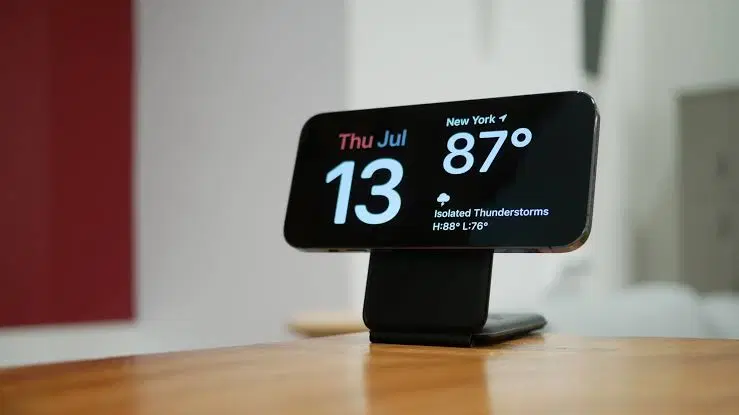
Swiping left again presents a variety of full-screen clock designs, including beautiful Analog, modern Digital, and even World Time options. Deep customization is at your fingertips; by long-pressing on any full-screen clock and tapping the editing pencil icon, you can perfectly tailor the aesthetic colors to complement your environment and preferences.
Conclusion
Mastering iPhone StandBy mode setup is your direct pathway to a smarter, more productive mobile experience. By elevating simple charging downtime into powerful, glanceable uptime, StandBy demonstrates Apple’s unique ability to merge hardware innovation with integrated software standards, delivering meaningful new layers of utility and security to everyday technology. Embody this innovation and unlock an entire new dimension of integrated efficiency in your daily mobile workflow.