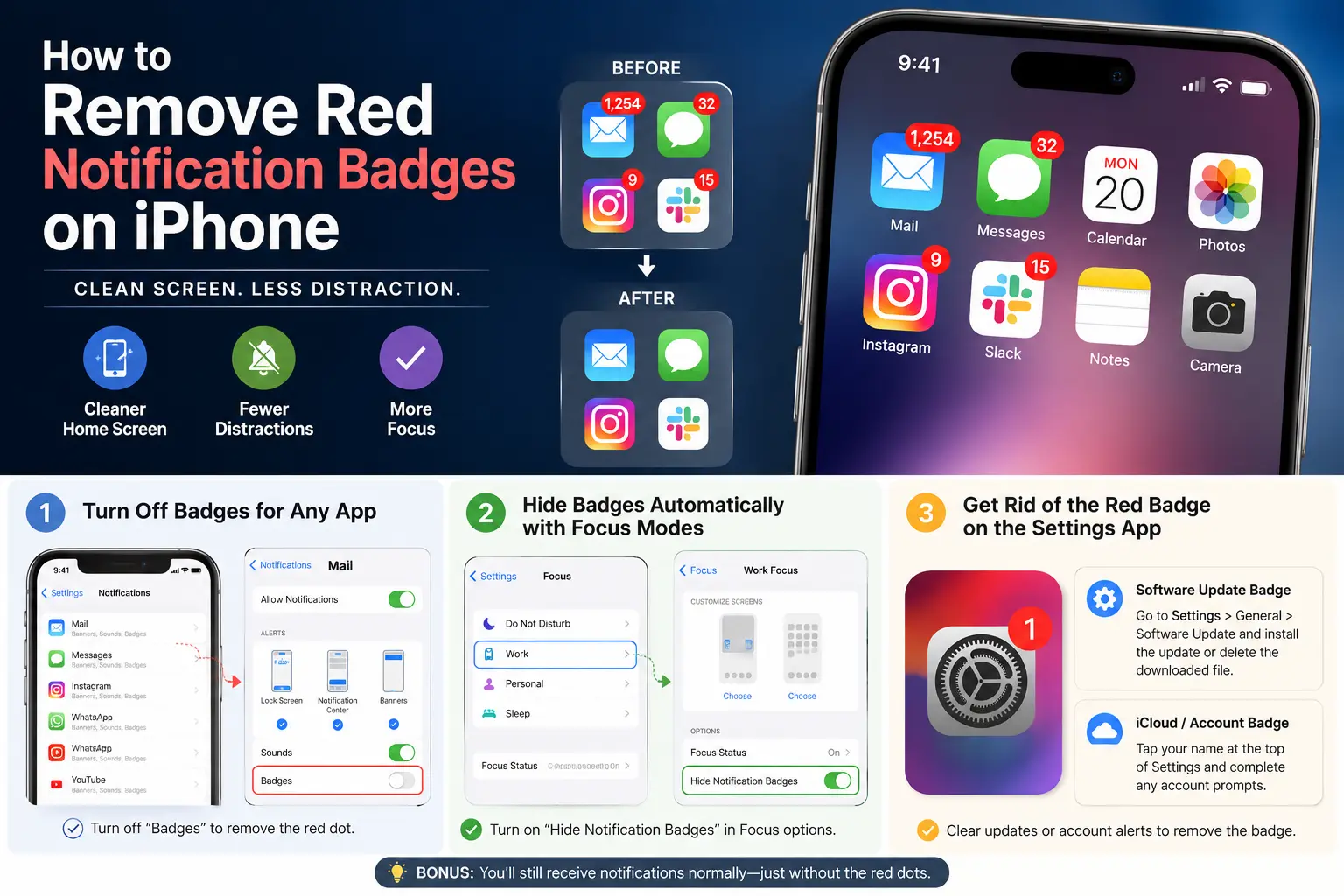
Those tiny red dots on your app icons are designed to pull your attention, but they quickly turn into overwhelming visual clutter. Learning how to remove red notification badges on iPhone is the easiest way to regain focus, lower screen anxiety, and enjoy a clean, minimalist Home Screen layout.
Whether you want to clean up high-volume social media apps, hide email counts, or clear an annoying alert on the system Settings icon, this guide covers three simple, effective methods to fix your screen today. For more iOS tips, step-by-step tricks, and device guides, check out our iPhone information.
How to Remove Red Notification Badges on iPhone Apps
If you want to keep receiving important alerts in your Notification Center without seeing red numbers on your Home Screen, you can disable badges per application:
- Open Settings on your iPhone.
- Tap Notifications.
- Scroll through your list of apps and select the app you want to clean up (such as Mail, Messages, or Instagram).
- Turn off the Badges toggle switch under the Alerts section.
Once turned off, the red dot disappears from that app icon permanently. Your phone will still play sounds and show banner alerts when new messages arrive, but your main layout remains completely badge-free.
Hide Notification Badges Automatically Using Focus Modes
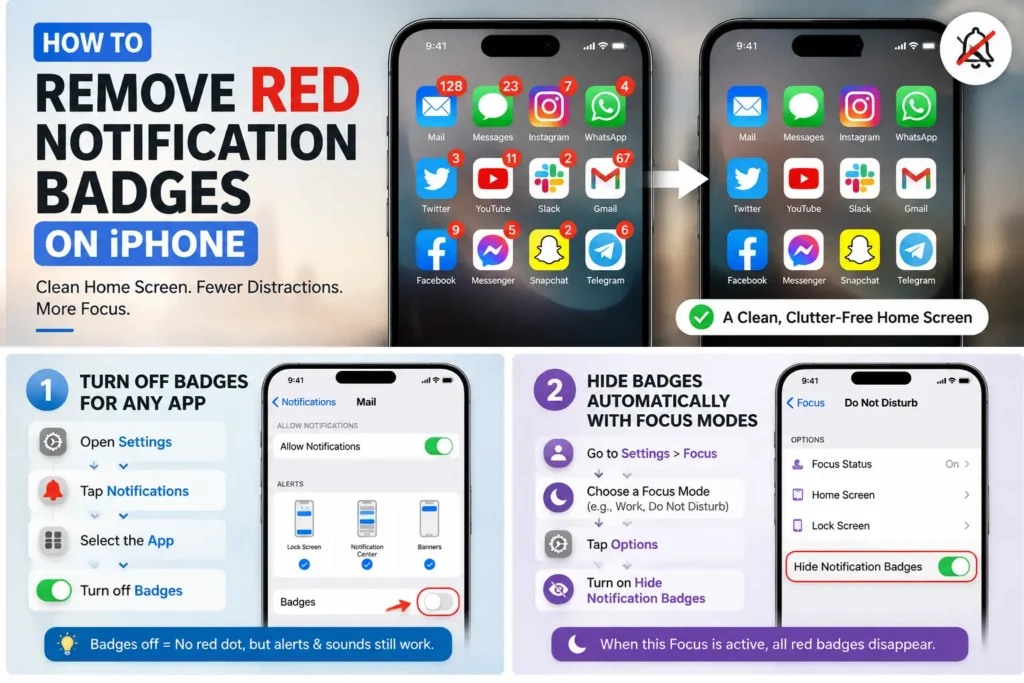
If you prefer to remove red notification badges on iPhone only while working, studying, or resting, iOS Focus modes offer an automated solution:
- Go to Settings and tap Focus.
- Select your desired mode, such as Work or Do Not Disturb.
- Tap Options located under the screen customization settings.
- Toggle on Hide Notification Badges.
Whenever that Focus mode activates, every red badge on your Home Screen automatically vanishes until your session ends, keeping your phone distraction-free while you work.
How to Remove Red Notification Badges on iPhone Settings App
The Settings app often displays a persistent red badge for pending software updates or iCloud prompts. Because Apple does not include a direct switch for system badges, you must clear the underlying system alert:
- For Software Updates: Navigate to
Settings ➔ General ➔ Software Updateto finish installing the latest iOS version, or remove the downloaded installation package underiPhone Storage. - For Account Alerts: Open Settings, tap your name banner at the top, and follow the on-screen instructions to verify your Apple Account or iCloud backup settings.
If you continue to experience system alert issues, visit the official Apple Support Center for detailed troubleshooting guidance regarding your specific iOS version.
Conclusion
Learning how to remove red notification badges on iPhone is one of the best steps you can take to customize your user experience and streamline your daily routine. By disabling badges for noisy social media apps, using Focus modes during work hours, and clearing system alerts on the Settings icon, you can enjoy a clutter-free Home Screen without missing out on essential updates. Take a few minutes to adjust your settings today and build a calmer, more focused digital workspace.