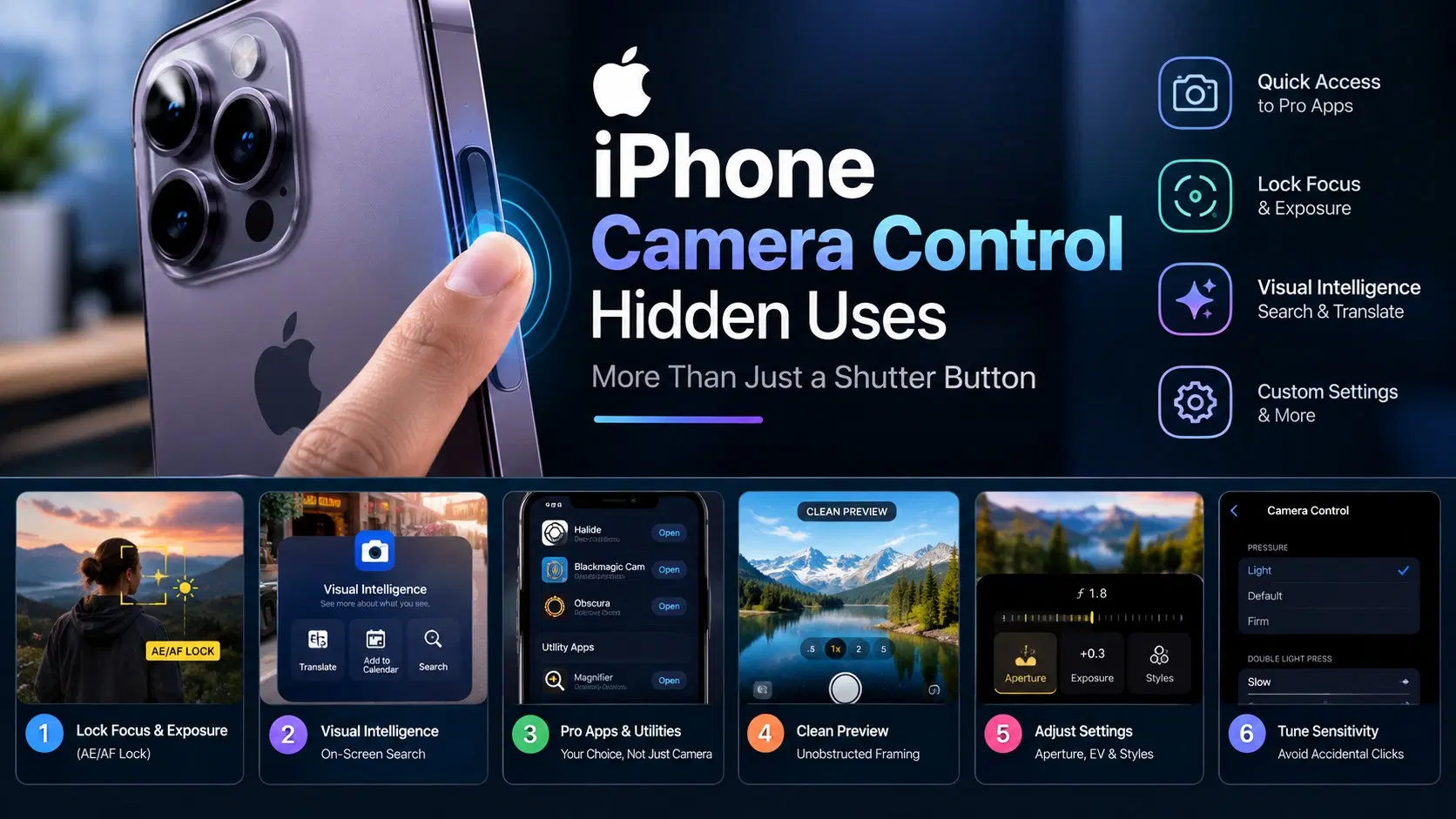
Apple’s capacitive Camera Control button does far more than just snap photos. Tucked beneath its force-sensitive sapphire surface and haptic engine are advanced shortcuts that transform your phone into a professional camera rig and smart visual tool.Exploring these iPhone Camera Control hidden uses lets you customize touch sensitivity, launch pro video apps, lock focus, and streamline how you capture moments every day.
1. Lock Focus and Exposure Like a Professional DSLR (AE/AF Lock)
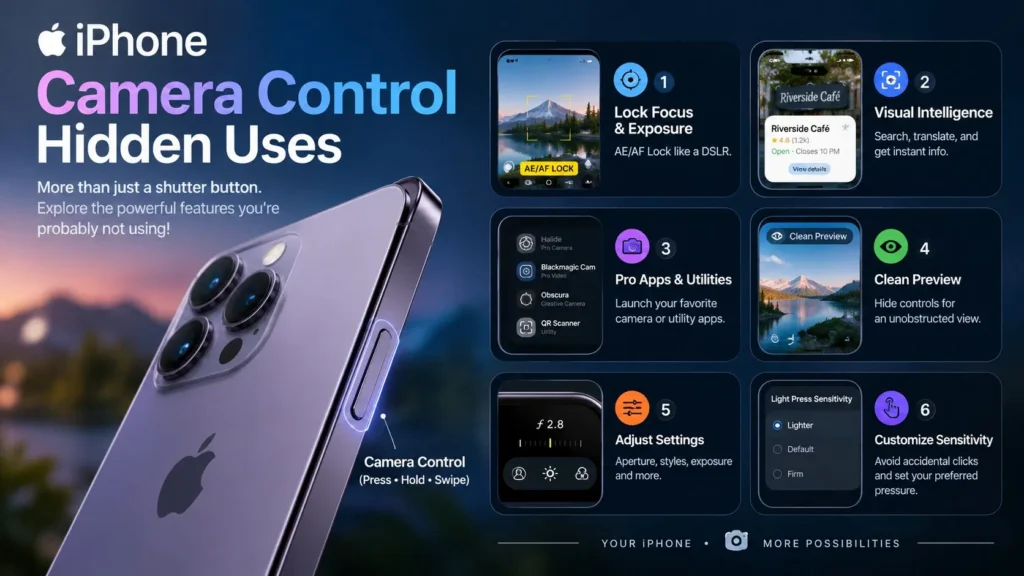
One of the most powerful features hidden inside the button is true two-stage shutter behavior. By enabling Lock Focus and Exposure in your camera settings, you can lightly press and hold the button until “AE/AF Lock” appears on your display.This locks your focus and lighting values onto a specific subject, allowing you to reframe your shot without losing focus before fully clicking the button to take the photo.
2. Instantly Trigger Apple Visual Intelligence for On-Screen Search
The Camera Control button also acts as a physical gateway to Apple’s AI ecosystem. By assigning the button’s press-and-hold gesture to Visual Intelligence, pointing your camera at a restaurant, event flyer, dog breed, or sign immediately brings up contextual information.You can translate text instantly, add event dates directly to your calendar, or send visual queries to Google Lens and ChatGPT.
3. Swap the Stock Camera for Pro Cinema and Utility Apps
You are not locked into opening Apple’s default camera app when clicking the button. Through your system settings, you can reconfigure the Camera Control to open professional third-party camera suites like Halide, Blackmagic Cam, or Obscura.Alternatively, you can map the button to launch essential tools like the built-in QR Code Scanner or the Magnifier app for reading small text up close.
For complete gesture configurations and app compatibility, check the official Apple Camera Control user guide. You can also review camera framework APIs on the Apple Developer system portal.
4. Toggle Clean Preview for Unobstructed Framing
When you lightly touch the Camera Control surface, the system automatically hides on-screen camera controls, grids, and menus to give you an unobstructed view of your subject.While this “Clean Preview” mode is perfect for framing portraits and landscapes, you can toggle it off in settings if you prefer keeping touch-screen sliders visible while adjusting aperture or exposure via the physical button.
5. Fine-Tune Aperture, Photographic Styles, and EV Exposure
A light double-press on the button opens a slider menu right under your thumb. Swiping left or right allows you to adjust aperture f-stops for custom background blur (Depth of Field), tweak exposure compensation values, adjust shadow tones, or cycle through Photographic Styles in real time without taking your eyes off the scene.
6. Adjust Light Press Sensitivity to Eliminate Accidental Clicks
If you find the button too sensitive or difficult to light-press smoothly, iOS provides accessibility controls to recalibrate touch firmness. Navigating to Accessibility settings allows you to switch the required press pressure between Lighter, Default, or Firm, as well as slow down the double-light-press gesture speed so you never miss a setting transition.
Looking for more ways to optimize your device settings? Read our detailed guide on latest iPhone customization hacks and productivity tips.
Frequently Asked Questions
Can I change what app opens when I click the Camera Control button?
Yes, you can configure the button in Settings to launch third-party camera apps like Blackmagic Cam or Halide, or utility tools like Magnifier and Code Scanner.
How do I stop accidental Camera Control button presses in my pocket?
You can set the activation requirement from Single Click to Double Click or enable “Require Screen On” in your settings so the camera only opens when your display is active.
Conclusion
Mastering these iPhone Camera Control hidden uses elevates your smartphone photography from casual point-and-shoot taking to precise creative control. By personalizing touch sensitivity, mapping custom pro apps, and utilizing AE/AF lock, you turn a single physical button into your most versatile camera asset.