Running out of space on your device is one of the most frustrating experiences for any iOS user. Seeing that dreaded “Storage Almost Full” warning usually makes people think they have to sacrifice their cherished memories. Luckily, learning how to fix storage full without deleting photos on iPhone is easier than you think.
Instead of permanently wiping your picture gallery, you can free up gigabytes of space by clearing hidden caches, managing media optimization, and offloading unused applications. For more iOS optimization tips and troubleshooting guides, explore our iPhone information.
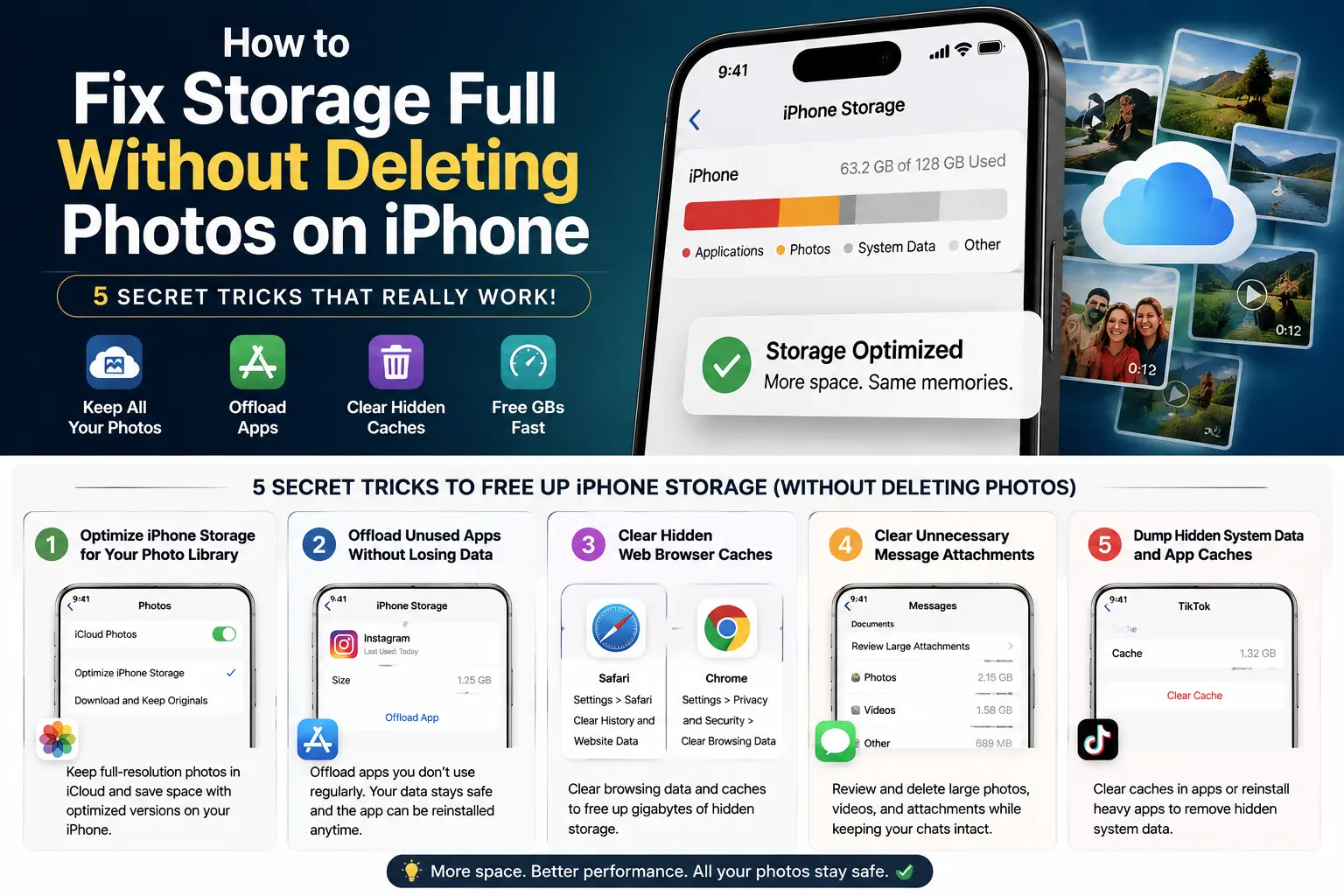
1. Optimize iPhone Storage for Your Photo Library
The most effective way to fix storage full without deleting photos is to let iCloud manage your file resolution automatically.
- Open the Settings app on your iPhone.
- Tap your Apple Account banner at the top.
- Select iCloud and then tap Photos.
- Select Optimize iPhone Storage (make sure Download and Keep Originals is un-checked).
This feature keeps full-resolution versions of your photos safely stored in iCloud while replacing the versions on your device with lightweight preview files. You save massive amounts of local space without losing a single memory.
2. Offload Unused Apps Without Losing Personal Data
Deleting apps removes both the application and its saved data. However, offloading removes only the app file itself while keeping your documents, game saves, and settings intact:
- Open Settings and tap General.
- Select iPhone Storage.
- Scroll through your app list and tap an app you rarely use.
- Tap Offload App.
The app icon stays on your Home Screen with a small cloud symbol. Whenever you need it again, simply tap the icon to reinstall it with all your personal data completely restored.
3. Clear Hidden Web Browser Caches
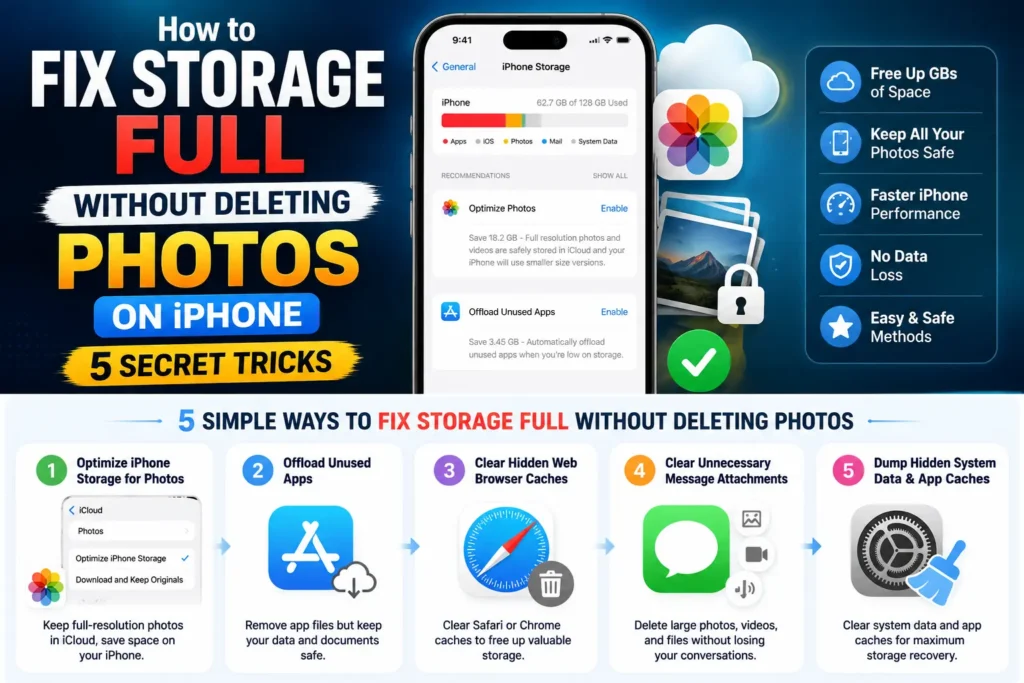
Web browsers store massive amounts of temporary files, images, and cookies that quietly fill up internal memory over time. Clearing this cache is a fast way to fix storage full without deleting photos:
- For Safari: Go to
Settings ➔ Safari, scroll down, and tap Clear History and Website Data. - For Chrome: Open Chrome, go to
Settings ➔ Privacy and Security, and select Clear Browsing Data.
Clearing web data can instantly recover several gigabytes of space without touching your media library.
4. Clear Unnecessary Message Attachments
Messaging apps like Messages and WhatsApp store old videos, audio notes, and GIFs in the background. You can delete these heavy attachments without deleting your actual chat history:
- Open Settings ➔ General ➔ iPhone Storage.
- Tap Messages.
- Review categories like Photos, Videos, and Large Attachments.
- Delete heavy media files you no longer need.
If you encounter persistent iCloud syncing errors or backup glitches while managing media, check out official solutions on the Apple Support Center.
5. Dump Hidden System Data and App Caches
If your device is still low on space, hidden “System Data” is usually the culprit. Stream media apps like Netflix, Spotify, and TikTok store massive amounts of offline cache files.
To clear these, open individual app settings and tap Clear Cache, or temporarily delete and reinstall heavy social media apps. Reinstalling rebuilds the app file from scratch without years of accumulated cache files.
Conclusion
Knowing how to fix storage full without deleting photos on iPhone allows you to keep your precious memories safe while restoring your device’s operating speed. By enabling iCloud photo optimization, offloading unused apps, clearing browser caches, and removing heavy message attachments, you can easily reclaim gigabytes of storage space. Apply these quick adjustments today to enjoy a smoother, faster iPhone experience without losing a single photo.